Designing your own knitting patterns is easier and faster than ever thanks to digital knitting chart makers. Whether you want to visualize complex colorwork, plan lace motifs, or create truly one-of-a-kind designs, a knitting chart maker gives you the tools to lay everything out before you pick up your needles. This guide explains what a knitting chart maker is, highlights the best tools, and offers clear steps and tips to help you start making your own knitting charts and patterns with confidence.
What Is a Knitting Chart Maker?
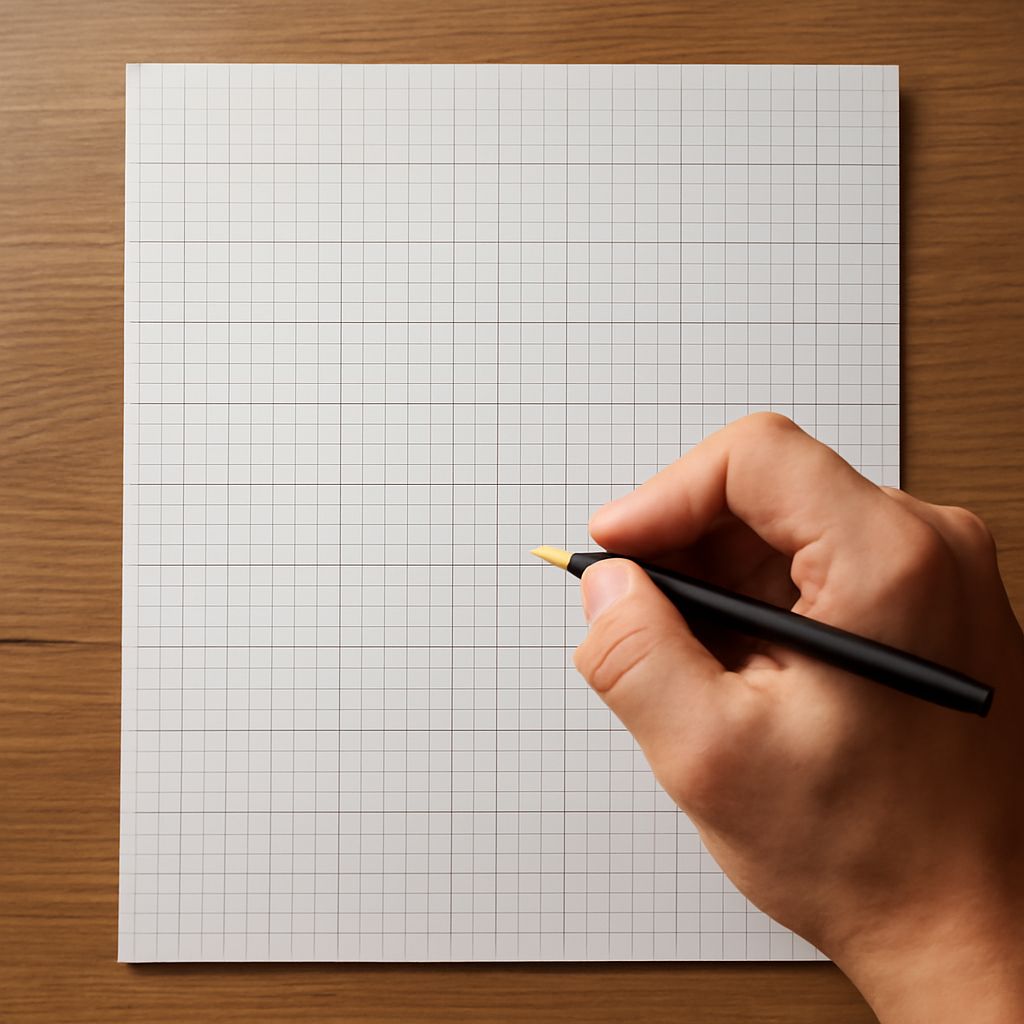
A knitting chart maker is a specialized software or online tool that helps knitters visually design and edit knitting patterns in chart form. Instead of writing out instructions row by row, you use a grid where each square represents a stitch. Symbols, colors, or textures indicate knit, purl, cable, lace, or colorwork stitches. This visual approach makes it easier to spot mistakes, see motifs, and create charts for personal use or sharing with others.
The main advantage of a knitting chart maker over manual charting is efficiency and accuracy. Chart makers let you drag and drop stitch symbols, repeat sections, and instantly update the chart when making changes. They often support both flat and circular knitting, automatic legend creation, and pattern exports in printable and digital formats. These tools are invaluable whether you are a hobbyist clarifying a simple repeat or a designer creating intricate, multi-page knitting patterns.
Most chart makers are compatible with standard knitting chart conventions, which means you can use the charts in patterns for personal use, teaching, or even selling as downloadable PDFs. This flexibility makes a knitting chart maker an essential for anyone serious about custom pattern design.
Popular Knitting Chart Maker Tools
There’s a wide range of knitting chart maker software available, from free web-based tools to advanced professional applications. Here are some of the most popular options:
- Stitch Fiddle: A free online knitting chart maker ideal for beginners and intermediate designers. Offers support for knitting, crochet, and cross-stitch, with options for custom symbols and colorwork. The paid version adds more export and sharing features.
- Chart Minder: A web-based application focused on quick, clean chart creation. It’s great for simple motifs and lets you generate printable charts with minimal setup.
- EnvisioKnit: A comprehensive knitting pattern maker for Windows, supporting advanced features like automatic written instructions, repeats, and multiple chart types. It’s a paid program aimed at designers and power users.
- Intwined Pattern Studio: Available for PC and Mac, this tool allows both charted and written pattern creation, with extensive symbol libraries and color options.
When choosing a knitting chart maker, consider your operating system, whether you need mobile access, pattern export needs (PDF, PNG, SVG), and if you want to sync charts across devices. Many tools offer free trials or demos, so you can experiment before committing.
Step-by-Step: Making a Knitting Chart
Choose Your Tool
Start by selecting a knitting chart maker that fits your needs. If you’re new to charting, Stitch Fiddle or Chart Minder are straightforward and free to use. For professional-grade features, EnvisioKnit or Intwined Pattern Studio offer more control. Sign up or download the program, and open a new chart project.
Input Stitches and Symbols
Set up your grid by choosing the number of stitches and rows you need. Most knitting chart makers let you customize the grid size and layout for flat or circular knitting. Then, select symbols from the tool’s stitch library—such as knit, purl, yarn over, decrease, or cable stitches—and place them on the grid to build your pattern. For colorwork charts, pick your palette and fill in each square with your chosen colors. Use repeat and selection tools to quickly duplicate motifs or mirror pattern sections.
Preview the legend or key as you go—most chart makers automatically generate this based on the symbols you use, so knitters can easily follow your pattern. Make adjustments as needed by dragging, erasing, or replacing symbols. This visual workflow helps you catch errors and experiment with design variations before you knit a swatch.
Export or Print Your Chart
Once you’re satisfied with your knitting chart, use the export function to save it. Most programs support PDF, PNG, and SVG formats for easy printing or digital sharing. Double-check that your chart’s legend, size, and formatting will be clear for your intended audience. Save the project file as a backup so you can edit or reuse the chart in future knitting patterns.
Tips for Designing Knitting Patterns
When working with a knitting chart maker, keep design clarity and usability in mind:
- Choose symbols and colors that contrast for easy reading.
- Label chart axes and repeat sections clearly for accurate knitting.
- Preview charts in both digital and printed formats to ensure all details are visible.
- Use built-in tools for automated repeats and mirroring to save time and reduce errors.
- Always knit a test swatch before finalizing your pattern, as some motifs look different in yarn than on screen.
With the right knitting pattern maker and thoughtful planning, you can bring your creative ideas to life and create beautiful, custom-designed knitting projects with confidence.